
In this sectionOffers4 articles
Create an offer
Building the thing you sell — choosing a type, setting a price, and getting it ready for checkout.
What an offer is
An offer is one thing you sell at one price. A checkout button sells one offer, and buying it produces an order.
Three products means three offers.
Before you start
Connect Stripe first. You can create an offer without it, but it saves as archived — it can't be made active until Stripe is connected, and an offer that isn't active can't be sold.
Digital or service
The first choice you make, and it can't be changed later. The two types behave differently after payment, so picking the wrong one means creating the offer again.
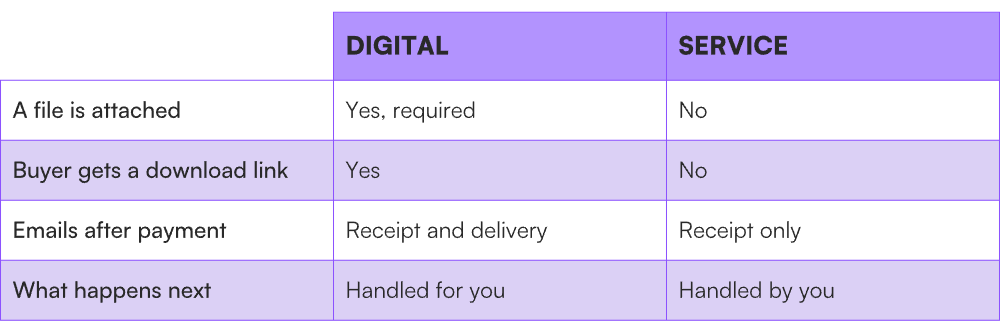
Choose Digital if you're selling a file — templates, ebooks, presets, fonts, audio, design assets. The buyer gets their download straight away and you don't have to do anything.
Choose Service if payment is for something you deliver yourself — consulting, coaching, audits, custom work, bookings.
Selling a service but want to send a welcome pack or intake form with it? Use a digital offer and attach that file.
Create it
You can do this from Offers in your seller dashboard or the Offer tab in the Framer plugin. They're the same offers — changes in one show in the other.
-
Create a new offer and choose Digital or Service.
-
Give it a name. Buyers see this at checkout and on their receipt, so name it the way you'd describe it to a customer.
-
Add a description and an image.
-
Set your price.
-
For a digital offer, upload your file and wait for the scan to finish.
-
Set it active.
Pricing
Each offer has one price, charged once. There's no recurring billing, no instalments, and no deposits — if you need those, see Selling subscriptions or recurring payments.
Currency is set at account level by your Stripe account, based on its country, and is the currency your payouts arrive in. You can't set it per offer.
Compare-at price is optional. Set one higher than your price and checkout shows your price alongside the struck-through original, with a sale badge.
Tax. If Stripe Tax is on, tax is calculated at checkout from your buyer's location. Say clearly on your product page whether your price includes tax — buyers who see a price rise at checkout tend to abandon. See Charging tax on your sales.
Changing a price later takes effect on your live site straight away, with no need to republish. Existing orders keep the price that was paid.
For digital offers
A digital offer can't be created without a file. Accepted file types are listed under the upload box, and every file is scanned before it can be delivered.
You can also set a download limit and a link expiry for each offer. The defaults are 5 downloads and 30 days — both are there as a protective measure for your file. See Download limits and link expiry.
For service offers
When someone buys, Koarge takes the payment into your Stripe account, emails the buyer their receipt, and adds the order to your Orders page.
Getting in touch and doing the work is up to you — Koarge doesn't prompt you or the buyer. Use the description to set expectations on what happens next and when.
Then put it on your site
Creating an offer doesn't put it anywhere. Select it in the plugin's Offer tab, insert its checkout button, and publish your Framer site. See Add your checkout button and publish your site.
If it doesn't work
-
You can't activate it. Usually Stripe isn't connected. See Why can't I activate my offer?
-
You picked the wrong type. Types can't be switched. Create a new offer with the right type and archive the old one.
-
Your file was rejected. See Which files you can sell.
-
The currency is wrong. That's your Stripe account's default. Change it in Stripe.
-
You want several price points. Create a separate offer for each, with its own checkout button.
-
The offer doesn't appear in Framer. Check it's active and your license is activated.